





RTL-SDR Setup Guide for Windows 2026: SDRSharp, SDR++, Zadig, Drivers, and First Signal
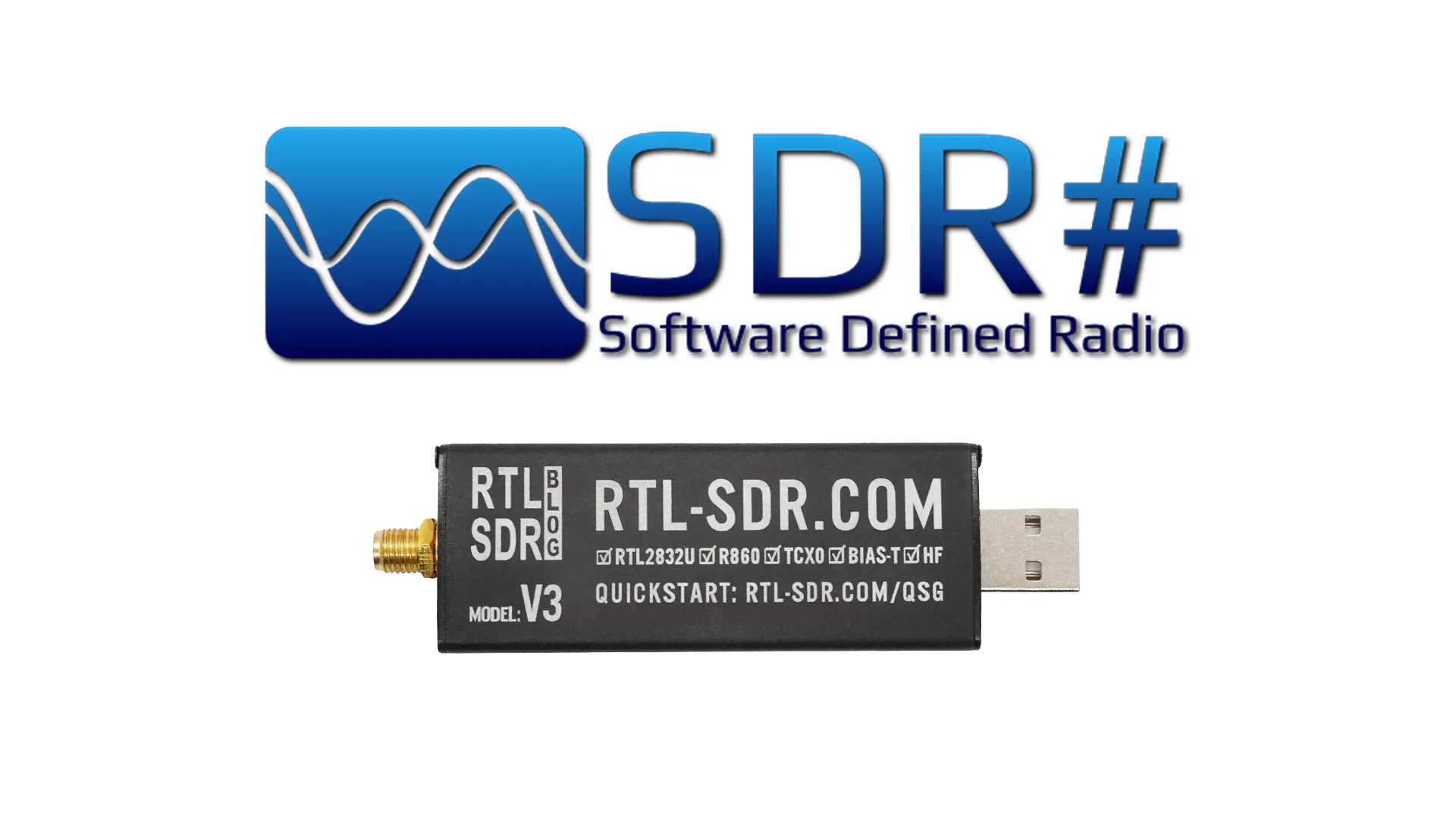
Setting up an RTL-SDR on Windows is much easier in 2026 than it used to be, but it can still confuse beginners because there are several pieces involved: the SDR dongle, Zadig, WinUSB drivers, SDRSharp, SDR++, antenna placement, gain settings, and the first signal test.
This modern RTL-SDR setup guide for Windows shows the safest beginner workflow. We will cover how to install the driver with Zadig, how to set up SDRSharp and SDR++, how to avoid the most common Windows driver mistakes, and how to receive your first signal.
If you are starting from zero, the easiest hardware choice is an RTL-SDR kit that includes both the receiver and antenna. A good option is the RTL-SDR Blog V3 Kit, which includes the RTL-SDR receiver and a multipurpose dipole antenna set. You can also browse the full RTL-SDR receivers, kits, antennas, and accessories category.
Quick Answer: The Best RTL-SDR Setup Path for Windows
The best beginner setup path is to install the driver first, then test the dongle in one simple SDR program before trying multiple apps.
- Plug the RTL-SDR into a USB port.
- Install the WinUSB driver using Zadig.
- Install SDRSharp or SDR++.
- Select the RTL-SDR device in the software.
- Tune to a strong local FM broadcast station.
- Adjust gain until the signal is clean.
- Only after this, try other signals such as airband, ADS-B, AIS, satellites, or HF.
The most common beginner mistake is trying to install several programs at once before confirming that the RTL-SDR driver works. Start simple: one dongle, one program, one strong signal.
What You Need Before Starting
A basic RTL-SDR Windows setup does not need expensive hardware. The most important thing is using a proper SDR receiver, a suitable antenna, and the correct driver.
Recommended beginner setup
- An RTL-SDR receiver or kit
- A Windows 10 or Windows 11 computer
- Zadig for WinUSB driver installation
- SDRSharp or SDR++
- A suitable antenna for the frequency you want to receive
- A direct USB port or a good-quality USB extension cable
For beginners, the RTL-SDR Blog V3 Kit is still one of the easiest options because it includes a multipurpose dipole antenna set. If you already own antennas and cables, a dongle-only RTL-SDR receiver can also be enough.
Best RTL-SDR Hardware for Windows Beginners
| Hardware | Best For | Buyer Advice |
|---|---|---|
| RTL-SDR Blog V3 Kit | Beginners starting from zero | Best first choice because it includes receiver and antenna kit |
| RTL-SDR Blog V3 Dongle Only | Users who already own antennas | Good if you already have SMA antennas and cables |
| RTL-SDR Blog V4 | HF and stronger filtering, if genuine stock is available | Needs correct updated drivers and may be limited in availability |
| Multipurpose Dipole Antenna Kit | Users who already have a dongle but need a starter antenna | Good for FM, VHF, UHF, ADS-B tests, and 137 MHz satellite experiments |
If you are unsure what to buy, start with the RTL-SDR Blog V3 Kit. It is proven, beginner-friendly, and works with the software covered in this guide.
Step 1: Plug In the RTL-SDR
Plug the RTL-SDR into a USB port on your Windows computer. If possible, use a direct USB port on the computer instead of a cheap hub. Some low-quality USB hubs can cause disconnects, noise, or driver problems.
Windows may try to install a TV tuner driver automatically. That is normal, but it is not the driver you want for SDR software. SDRSharp, SDR++, and other SDR programs need access to the raw RTL-SDR device, so you need to replace the default driver with WinUSB using Zadig.
Important USB tips
- Use a direct USB port for the first setup.
- Avoid very long USB cables during the first test.
- Do not open multiple SDR programs at the same time.
- Do not install random driver packs from unknown websites.
- If the dongle gets warm, that is normal for many RTL-SDR receivers.
Step 2: Install the RTL-SDR Driver with Zadig
Zadig is the most common tool for installing the WinUSB driver needed by RTL-SDR software on Windows. This is the step that makes the RTL-SDR visible to programs like SDRSharp and SDR++.
Zadig installation steps
- Download Zadig from the official Zadig website.
- Run Zadig as administrator.
- Click Options.
- Enable List All Devices.
- Find the RTL-SDR device in the device list.
- Select Bulk-In, Interface (Interface 0) if it appears.
- Make sure the target driver is WinUSB.
- Click Replace Driver or Install Driver.
- Wait for Zadig to complete the driver installation.
Be careful in Zadig. Do not select your keyboard, mouse, webcam, Bluetooth adapter, WiFi adapter, or another unrelated USB device. You only want to install WinUSB for the RTL-SDR interface.
What should the RTL-SDR look like in Zadig?
The RTL-SDR often appears as Bulk-In, Interface (Interface 0), RTL2832U, RTL2838UHIDIR, or a similar name. The exact name can vary depending on the dongle and Windows driver state.
If you see two interfaces, use Interface 0 for the SDR driver. Do not change Interface 1 unless a specific guide for your hardware tells you to.
Step 3: Install SDRSharp for Windows
SDRSharp, also called SDR#, is one of the most popular Windows SDR programs. It is especially useful for beginners because many older and current RTL-SDR tutorials are written around SDRSharp.
SDRSharp is a good first test because it gives you a clear spectrum, waterfall, demodulators, gain controls, and a familiar Windows interface. If your goal is simple listening, scanning, or learning, it is still a strong option.
Basic SDRSharp setup steps
- Download SDRSharp from the official Airspy download page.
- Extract the SDRSharp folder to a normal location, such as your Desktop or Documents folder.
- Avoid placing it inside
Program Filesif you want to avoid permission issues. - Run the RTL-SDR driver installation script if included.
- Open SDRSharp.
- Select the RTL-SDR device source.
- Set the mode to WFM for a local FM broadcast station.
- Press Play.
If SDRSharp opens but cannot access the dongle, the issue is usually the driver. Go back to Zadig and confirm that WinUSB is installed for the correct RTL-SDR interface.
Step 4: Install SDR++ for a Modern Beginner Experience
SDR++ is one of the best modern SDR programs for beginners. It is fast, clean, cross-platform, and easier to use than many older SDR applications. For many new RTL-SDR users in 2026, SDR++ is the best first daily-use receiver.
SDR++ is a good choice if you want a modern interface for FM radio, airband, amateur radio monitoring, weather satellite experiments, general scanning, and quick spectrum viewing.
Basic SDR++ setup steps
- Download SDR++ for Windows.
- Extract or install the program depending on the package.
- Open SDR++.
- Select RTL-SDR as the source.
- Choose the device from the source menu.
- Set a sample rate such as 2.048 MSPS or 2.4 MSPS.
- Set a local FM broadcast frequency.
- Start the radio.
- Add a WFM radio module if needed.
SDR++ is often the best choice if you want a cleaner interface than SDRSharp. SDRSharp is still strong for Windows plugin workflows, while SDR++ is usually easier for simple daily listening.
SDRSharp vs SDR++ for RTL-SDR Setup
| Feature | SDRSharp | SDR++ |
|---|---|---|
| Best for | Windows users, plugins, older tutorials, scanner-style workflows | Modern beginner listening, cross-platform use, clean interface |
| Beginner friendliness | Good | Excellent |
| Windows support | Excellent | Excellent |
| Plugin ecosystem | Stronger | More limited |
| Interface style | Classic Windows SDR layout | Modern and lightweight |
| Best first signal test | Local FM broadcast station | Local FM broadcast station |
If you are completely new, try SDR++ first. If you want Windows plugins or you are following older RTL-SDR tutorials, install SDRSharp as well.
Step 5: Tune Your First Signal
The best first signal is a strong local FM broadcast station. Do not start with weak amateur radio, ADS-B, weather satellites, or HF. First prove that the driver, software, antenna, and dongle are working.
Recommended first signal settings
| Setting | Beginner Value |
|---|---|
| Signal type | Local FM broadcast station |
| Frequency range | 88–108 MHz |
| Demodulation mode | WFM |
| Sample rate | 2.048 MSPS or 2.4 MSPS |
| Filter bandwidth | Around 150–250 kHz for WFM |
| Gain | Start around medium manual gain, then adjust |
| Antenna | Telescopic antenna adjusted for the FM band |
Tune to a strong station in your area. You should see a wide signal peak in the waterfall. If the signal appears but the audio sounds bad, check that you are using WFM and not NFM.
Step 6: Adjust RTL-SDR Gain Correctly
Gain is one of the most important settings in any RTL-SDR setup. Too little gain makes signals weak. Too much gain overloads the receiver and makes the waterfall look bright but dirty.
Beginners often set gain to maximum because they think stronger is always better. It is not. The goal is a clean signal-to-noise ratio, not the brightest waterfall.
Gain setup tips
- Turn off automatic gain if it causes unstable results.
- Start with medium manual gain.
- Increase gain until the signal is clear.
- Reduce gain if the whole waterfall becomes bright or noisy.
- Use lower gain near strong transmitters.
- Use filters if strong FM, AM, or pager signals overload the receiver.
For FM broadcast testing, a medium gain setting is usually enough. For weak signals, antenna placement often matters more than increasing gain.
Step 7: Set Up the Antenna
The antenna is just as important as the RTL-SDR dongle. A good receiver connected to a poor indoor antenna may perform worse than a basic receiver connected to a well-placed outdoor antenna.
If you use the RTL-SDR Blog multipurpose dipole kit, adjust the telescopic elements based on the frequency you want to receive. Longer elements are better for lower frequencies, while shorter elements are better for higher frequencies.
Antenna tips for beginners
- For FM broadcast, extend the antennas longer and place them near a window.
- For airband, use a VHF-friendly antenna around the 118–137 MHz range.
- For ADS-B, use a dedicated 1090 MHz antenna for better range.
- For weather satellites, configure the dipole as a V-dipole around 137 MHz.
- For HF, use a suitable long wire, HF antenna, or the correct V4/V3 HF workflow.
- Keep antennas away from computers, routers, monitors, LED lights, and power supplies.
If your first signal is weak, move the antenna before assuming the RTL-SDR is broken. Antenna placement can completely change the result.
Special Note for RTL-SDR Blog V4 Users
RTL-SDR Blog V4 users need to pay attention to drivers. The V4 is different from the V3 and needs compatible RTL-SDR Blog drivers. If you use old drivers, the V4 may show incorrect tuning, no useful signals, or poor behavior.
On Windows, this often means replacing the rtlsdr.dll file inside the software folder with the correct updated RTL-SDR Blog driver file. For SDRSharp, you usually need the x86 DLL if you are using the x86 version. For 64-bit software, you usually need the x64 DLL.
V4 driver checklist
- Install WinUSB with Zadig as normal.
- Download the latest RTL-SDR Blog driver release.
- Copy the correct
rtlsdr.dllinto the SDR software folder. - Replace the old DLL if one already exists.
- Restart the SDR software.
- Test on a strong local FM station first.
If you are using the V3, this DLL replacement is usually optional. If you are using the V4, it is much more important.
Common RTL-SDR Windows Problems and Fixes
Problem: SDRSharp or SDR++ does not see the RTL-SDR
This usually means the WinUSB driver is not installed correctly. Open Zadig again, enable List All Devices, select the RTL-SDR interface, and install or replace the driver with WinUSB.
Problem: Zadig does not show Bulk-In Interface
Unplug and replug the RTL-SDR, try another USB port, restart Zadig as administrator, and make sure List All Devices is enabled. If needed, try a different USB cable or remove other USB tuner devices during setup.
Problem: I selected the wrong device in Zadig
If you accidentally changed the driver for the wrong USB device, unplug the device and reinstall its correct manufacturer driver from Windows Device Manager or the manufacturer website. This is why you must be careful when selecting devices in Zadig.
Problem: The waterfall is moving but I hear no audio
Check the demodulation mode, audio output device, squelch setting, volume, and filter bandwidth. For FM broadcast, use WFM. For airband, use AM. For narrowband FM signals, use NFM.
Problem: The signal is very weak
Check the antenna first. Move it near a window or outside, adjust the length, choose a stronger first signal, and then adjust gain. Do not start with weak signals before you confirm the setup works.
Problem: Everything looks overloaded
Reduce gain. If you live near strong FM, AM, pager, DAB, or cellular transmitters, you may need a filter or a different antenna placement.
Problem: V4 receives nothing or frequencies look wrong
Make sure you are using the correct RTL-SDR Blog V4 driver and updated rtlsdr.dll. Old drivers are a common cause of V4 setup problems.
Best First Projects After Setup
After you receive your first FM broadcast station, you can move on to more interesting SDR projects. Do not try everything on day one. Start with easy signals, then move to harder ones.
| Project | Difficulty | Recommended Software | Extra Hardware |
|---|---|---|---|
| FM broadcast listening | Very easy | SDR++ or SDRSharp | Basic antenna |
| Airband listening | Easy | SDR++ or SDRSharp | VHF antenna |
| ADS-B aircraft tracking | Easy | dump1090 or similar tools | 1090 MHz antenna recommended |
| AIS ship tracking | Easy to medium | AIS decoder software | VHF marine antenna recommended |
| Weather satellites | Medium | SatDump | 137 MHz V-dipole or QFH antenna |
| Radiosondes | Medium | radiosonde_auto_rx or related tools | Suitable VHF/UHF antenna |
| HF reception | Medium | SDR++ or SDRSharp | Suitable HF antenna and correct V3/V4 settings |
Recommended Windows Setup Order
The cleanest Windows RTL-SDR setup order is:
- Install Zadig and WinUSB driver.
- Install SDR++.
- Test a strong FM station.
- Install SDRSharp if you want Windows plugins.
- Install SatDump if you want satellite reception.
- Install ADS-B or AIS tools only after the receiver works.
- Save your working settings before experimenting further.
This avoids the common problem where beginners install five programs, change many drivers, and then cannot tell which part is causing the issue.
Best SDRstore Products for This Setup
- RTL-SDR Blog V3 Kit – best complete beginner package for Windows setup.
- RTL-SDR receivers and accessories – browse dongles, kits, filters, antennas, and add-ons.
- RTL-SDR Multipurpose Dipole Antenna Kit – useful if you already own a dongle but need a starter antenna.
For most Windows beginners, the RTL-SDR Blog V3 Kit is the easiest first purchase because it includes the receiver and antenna kit needed for the first tests.
Final Recommendation
The best RTL-SDR setup for Windows in 2026 is simple: use Zadig to install WinUSB, test the dongle in SDR++ or SDRSharp, and start with a strong FM broadcast station before moving to more advanced projects.
SDR++ is the best modern first app for most beginners. SDRSharp is still excellent for Windows users who want plugins and a long tutorial history. Zadig is the key driver step that makes the dongle accessible to SDR software.
If you are buying hardware for the first time, choose the RTL-SDR Blog V3 Kit or another proper RTL-SDR receiver from SDRstore. Avoid random generic TV dongles if you want a reliable beginner experience.
Once your first signal works, the RTL-SDR becomes much more than a cheap USB receiver. It can be used for ADS-B, airband, AIS, radiosondes, satellites, HF experiments, and general spectrum exploration.
FAQ
How do I set up RTL-SDR on Windows?
Plug in the RTL-SDR, use Zadig to install the WinUSB driver for the RTL-SDR interface, install SDR++ or SDRSharp, select the RTL-SDR device, and test a strong local FM broadcast station.
Do I need Zadig for RTL-SDR?
Yes, in most Windows setups you need Zadig to replace the default TV tuner driver with WinUSB so SDR software can access the RTL-SDR device.
Should I use SDRSharp or SDR++?
Use SDR++ if you want the easiest modern beginner interface. Use SDRSharp if you are on Windows and want plugins, older tutorial compatibility, or the classic SDR# workflow.
Why does SDRSharp not detect my RTL-SDR?
The most common reason is an incorrect driver. Reopen Zadig, enable List All Devices, select the RTL-SDR interface, and install or replace the driver with WinUSB.
What is the best first signal for RTL-SDR?
A strong local FM broadcast station is the best first signal because it is easy to find, strong, and simple to demodulate using WFM mode.
What sample rate should I use with RTL-SDR?
A good beginner sample rate is 2.048 MSPS or 2.4 MSPS. Higher sample rates may be less stable on some systems, while lower rates show less spectrum.
Why is my RTL-SDR signal weak?
Weak signals are usually caused by poor antenna placement, the wrong antenna length, low gain, or trying to receive a difficult signal too early. Start with a strong FM station and move the antenna near a window or outside.
Does RTL-SDR Blog V4 need special drivers?
Yes. RTL-SDR Blog V4 users should use the correct updated RTL-SDR Blog drivers and may need to replace the rtlsdr.dll file in the SDR software folder.
Can RTL-SDR work on Windows 11?
Yes. RTL-SDR can work on Windows 11 when the correct WinUSB driver is installed with Zadig and the SDR software is configured correctly.
What should I buy for my first RTL-SDR setup?
The RTL-SDR Blog V3 Kit is a strong first choice because it includes the receiver and a multipurpose dipole antenna kit, making it easier to start receiving signals immediately.
No posts found
Write a review






We support all major card and digital payment options. More local methods are available and shown during checkout.
You enter into a binding sales contract once you have received an 'order confirmation and sales receipt' email from us, in line with our Sales & Delivery conditions. Therefore, sdrstore.eu has the right to cancel your order in the event of technical problems, delivery failure, Fair use policy and other similar situations.





Your payments are protected by advanced encryption and 3-D Secure authentication for safe online shopping.