





Fix HackRF H4M White/Black Screen: Screen Problems Solved
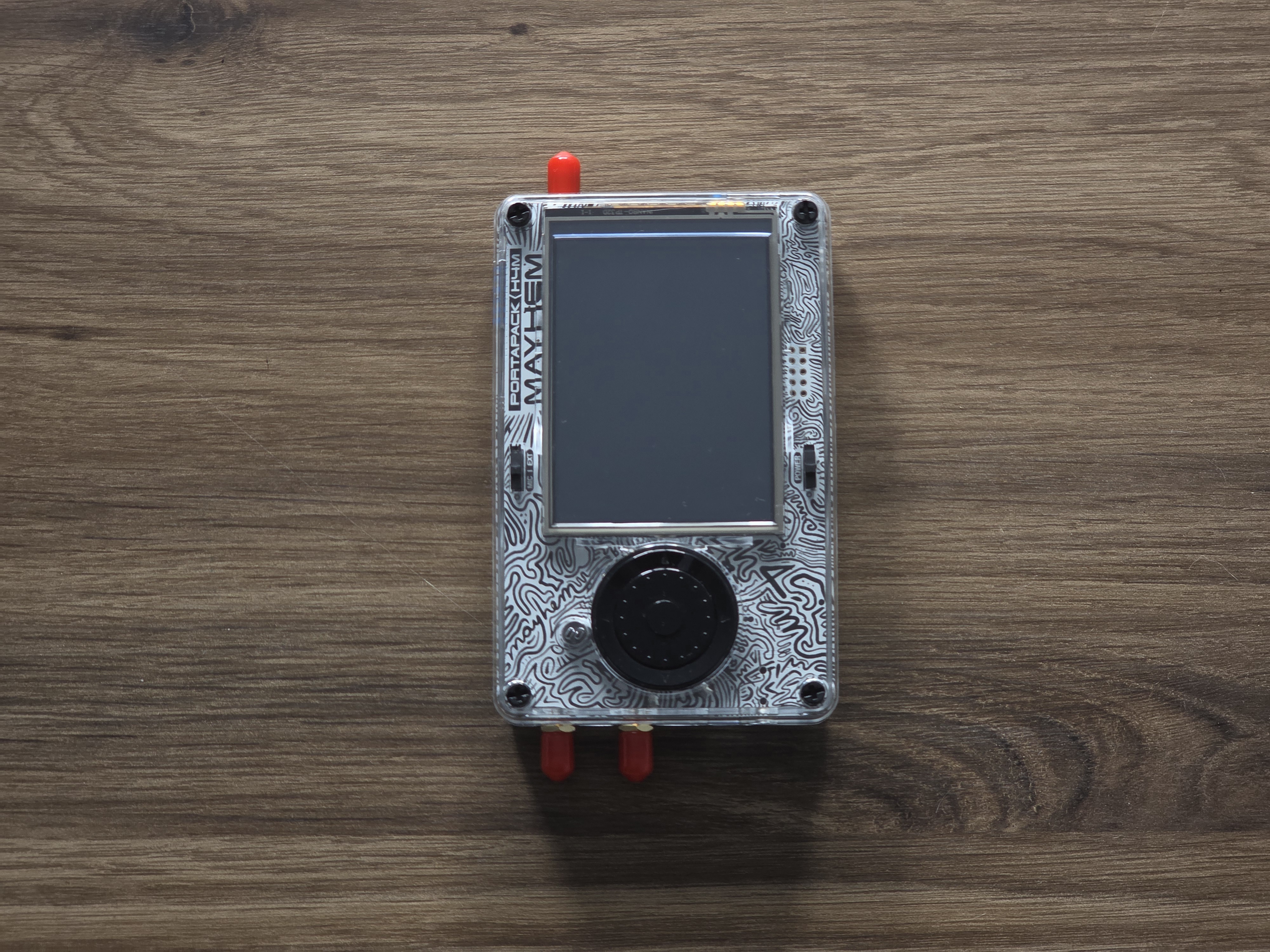
Common Screen Problems Overview
- White Screen on Boot: Display shows solid white, no Mayhem interface
- Black Screen: No display output, device may show LED activity
- Intermittent Display: Screen works only with pressure or specific angles
- Flickering Screen: Display flashes or shows unstable image
Quick Fixes First
- Safe Boot Method: Power off, then hold the LEFT button while powering on. This forces safe display initialization.
- Display Driver Reset: Hold UP button during boot to reset LCD driver for white screen issues.
- Power Cycle: Completely power off (sliding switch), wait 10 seconds, power back on.
- Battery Connection: Ensure battery is properly seated and charged above 3.7V.
Firmware-Related Screen Issues
- Corrupt Firmware: Flash latest Mayhem firmware using DFU mode or web flasher at hackrf.app.
- Config Mode Boot: Device may boot into configuration mode showing minimal display—navigate to Settings → Config Mode to disable.
- SD Card Problems: Remove SD card and test boot without it. Corrupted files can cause display initialization failures.
- Version Mismatch: Ensure firmware matches your H4M hardware revision (R10 vs R10C).
Hardware Connection Issues
- Open the Case: Remove the four screws holding the H4M case together.
- Check Display Ribbon Cable: Verify the display connector is fully seated and not damaged.
- Reseat Connections: Gently disconnect and reconnect both the display ribbon and any loose connectors.
- Inspect for Damage: Look for bent pins, torn ribbons, or physical damage to the display assembly.
Advanced Troubleshooting
- USB Detection Test: Connect to PC—if computer recognizes the device but screen stays blank, it's likely a display hardware issue.
- DFU Mode Entry: Hold DFU button while connecting USB. If successful, display hardware may need replacement.
- Voltage Check: Measure battery voltage (should be 3.7-4.2V) and ensure stable power delivery.
- Temperature Sensitivity: Some displays fail at extreme temperatures—test at room temperature.
Display Hardware Replacement
If other fixes fail, display replacement may be necessary:
- Source Replacement Screen: Compatible 2.4" IPS displays available from suppliers.
- Disassembly Process: Remove case screws, disconnect ribbon cable, carefully remove old display.
- Installation Tips: Use proper adhesive, ensure ribbon cable routing doesn't block SD card slot.
- Upgraded Options: Some vendors offer higher-quality replacement screens with better color reproduction.
DFU Recovery Method
- Power off H4M completely
- Hold DFU button and connect USB cable to computer
- Release DFU button when computer recognizes DFU device
- Use dfu-util or Windows DFU tool to flash bootloader and firmware
- Follow complete firmware recovery procedure from official documentation
Preventive Measures
- Proper Handling: Avoid dropping or applying pressure to the screen area
- Case Protection: Use protective case or screen protector during transport
- Firmware Updates: Keep firmware current to benefit from display driver improvements
- Clean Assembly: Ensure connectors are free from dust and corrosion
When to Seek Professional Help
- Multiple hardware failures indicating broader PCB issues
- Micro-soldering required for ribbon cable repair
- No improvement after firmware recovery and hardware checks
- Device shows no signs of life (no LED activity, no USB recognition)
Cost-Benefit Analysis
- Screen Replacement: $20-40 for compatible display plus labor
- Professional Repair: $50-80 depending on complexity
- Device Replacement: Compare repair costs to new H4M price
Get Your HackRF H4M Today!
Prevention is better than repair—invest in a quality H4M with warranty coverage and protective accessories for reliable operation.
Get your H4M today!
Comments
No posts found
Write a review





We support all major card and digital payment options. More local methods are available and shown during checkout.
You enter into a binding sales contract once you have received an 'order confirmation and sales receipt' email from us, in line with our Sales & Delivery conditions. Therefore, sdrstore.eu has the right to cancel your order in the event of technical problems, delivery failure, Fair use policy and other similar situations.






Your payments are protected by advanced encryption and 3-D Secure authentication for safe online shopping.