





RTL-SDR Not Working? Fix Driver, Zadig, USB, Gain, and No Signal Problems
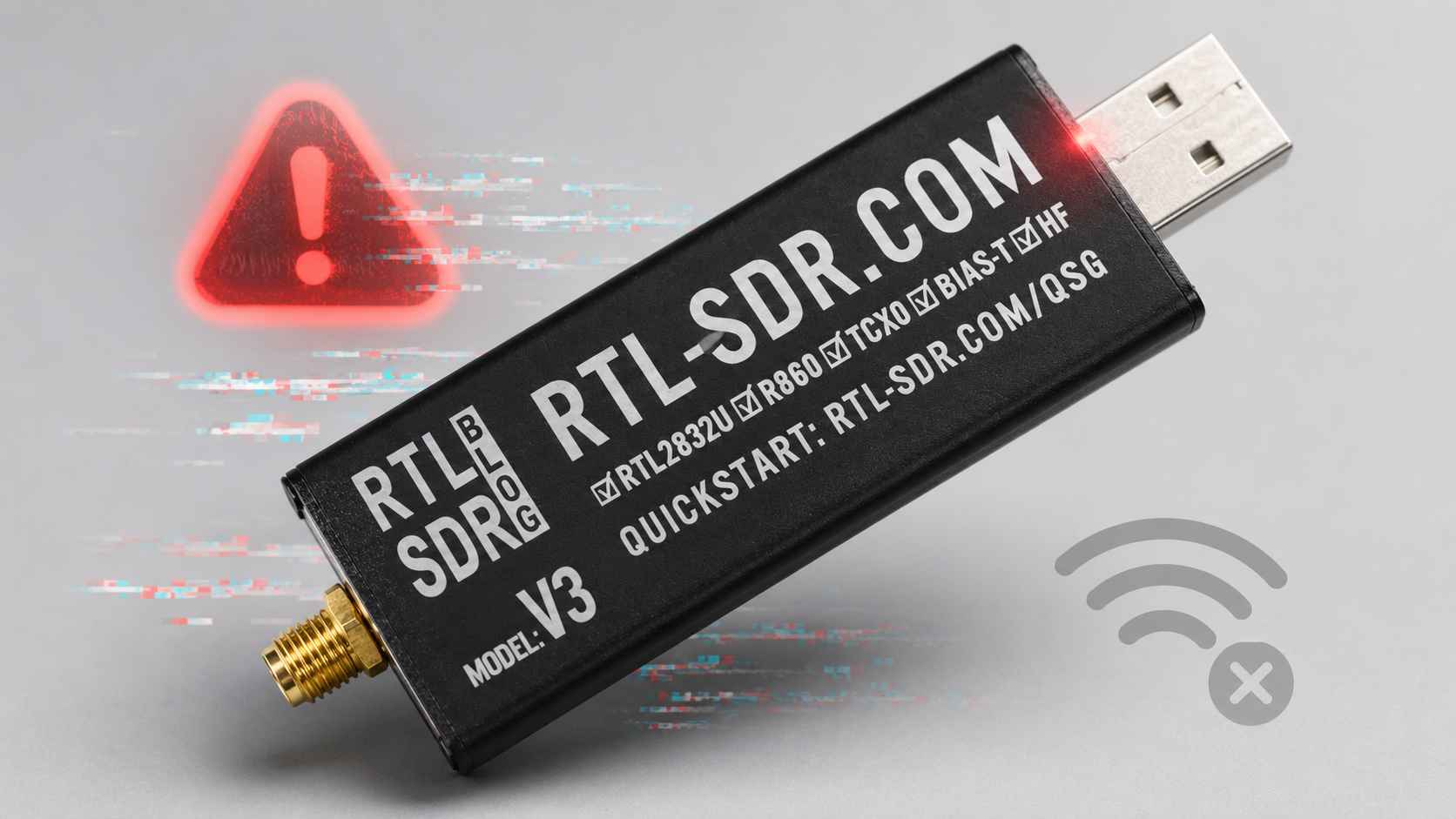
Is your RTL-SDR not working, not detected, showing no signals, or producing a weak waterfall? Most RTL-SDR problems are caused by a small number of issues: the wrong Windows driver, an incorrect Zadig selection, USB power problems, gain left at zero, a poor antenna setup, another SDR program locking the dongle, or outdated drivers for the RTL-SDR Blog V4.
The good news is that most problems can be fixed without replacing the receiver. This guide walks through the most common RTL-SDR errors and shows the fastest way to identify whether the issue is caused by software, drivers, USB, antenna placement, gain settings, or faulty hardware.
If you are buying your first receiver, browse the RTL-SDR receivers, kits, antennas, and accessories category. For beginners, the RTL-SDR Blog V3 Kit is a practical starting point because it includes a proper SDR receiver and multipurpose dipole antenna set.
Quick Fix Checklist: Try These First
Before reinstalling everything, test the simplest fixes in order:
- Close every SDR program, then unplug and reconnect the dongle.
- Connect the RTL-SDR directly to the computer instead of using a USB hub or long extension cable.
- Try a different USB port, preferably USB 2.0 if available.
- Open Zadig and confirm that WinUSB is installed on the correct RTL-SDR interface.
- Make sure you selected Interface 0, not Interface 1.
- Open SDRSharp or SDR++ and select the RTL-SDR source.
- Tune to a strong local FM broadcast station between 88 and 108 MHz.
- Increase manual gain from zero to a moderate level.
- Check that the antenna is connected properly and placed near a window or outside.
- If you use RTL-SDR Blog V4, confirm that your software has a compatible V4 driver.
If the dongle works after these steps, the problem was most likely configuration rather than hardware failure.
RTL-SDR Troubleshooting Table
| Problem | Most Likely Cause | Fastest Fix |
|---|---|---|
| RTL-SDR not detected | Wrong driver or wrong Zadig interface | Install WinUSB on Bulk-In Interface 0 |
| No compatible devices found | USB issue, wrong driver, or poor cable | Use a direct USB port and reinstall WinUSB |
| Device busy error | Another program is using the dongle | Close all SDR apps and reconnect the receiver |
| No signals visible | Gain at zero, wrong frequency, or antenna issue | Increase gain and test a local FM station |
| Very weak reception | Poor antenna placement or insufficient gain | Move the antenna outside and adjust gain |
| Wavy lines across spectrum | USB underpowering or poor extension cable | Plug directly into the computer |
| Works before Windows update, fails now | Windows replaced the WinUSB driver | Run Zadig again and reinstall WinUSB |
| V4 receives nothing or tunes incorrectly | Outdated RTL-SDR driver | Install the latest RTL-SDR Blog V4-compatible driver |
| Constant spike in the center | Normal DC spike behavior | Enable IQ correction if your software supports it |
| Frequent disconnects | Loose connector, bad hub, poor cable, or weak USB port | Test another direct USB port and cable |
Problem 1: RTL-SDR Is Not Detected in SDRSharp or SDR++
If SDRSharp, SDR++, or another SDR program cannot see your dongle, the most common cause is the Windows driver. Windows may install a TV tuner driver automatically, but SDR applications usually need a generic WinUSB driver.
Zadig is the standard Windows tool used to install WinUSB for RTL-SDR. It replaces the default DVB-T driver with a driver that allows SDR software to access the raw USB device.
How to reinstall the RTL-SDR driver with Zadig
- Plug the RTL-SDR into your computer.
- Download and open Zadig.
- Run Zadig as administrator.
- Open Options.
- Enable List All Devices.
- If needed on Windows 10 or Windows 11, uncheck Ignore Hubs or Composite Parents.
- Select Bulk-In, Interface (Interface 0).
- If that name does not appear, look for RTL2832U, RTL2832UHIDIR, Blog V4, or another RTL-prefixed entry.
- Make sure the driver on the right side is WinUSB.
- Click Replace Driver or Install Driver.
- Close Zadig, unplug the dongle, reconnect it, and restart your SDR software.
Be careful: do not click random devices in Zadig. Selecting the wrong USB device can overwrite the driver for a keyboard, mouse, webcam, Bluetooth adapter, audio interface, or another connected device.
Problem 2: You Installed WinUSB on Interface 1 Instead of Interface 0
One of the most common Zadig mistakes is installing WinUSB on Interface 1 instead of Interface 0. SDR software normally needs the driver installed on the correct RTL-SDR interface.
If you installed the driver on the wrong interface, SDRSharp may show errors such as “No Device Selected” or fail to detect the receiver.
How to fix the wrong Zadig interface
- Open Windows Device Manager.
- Find the RTL-SDR or Bulk Interface entry.
- Remove the incorrect driver from Interface 1 if you installed it there accidentally.
- Open Zadig again.
- Select Bulk-In, Interface (Interface 0).
- Install WinUSB.
- Reconnect the dongle and restart the SDR program.
Problem 3: Zadig Does Not Show Bulk-In Interface 0
If Zadig does not show Bulk-In Interface 0, do not assume the dongle is broken immediately. Windows may display the same receiver under a different name.
Try these steps:
- Enable Options → List All Devices.
- Uncheck Ignore Hubs or Composite Parents.
- Look for entries containing RTL, such as RTL2832U or RTL2832UHIDIR.
- Try another USB port.
- Disconnect other USB tuner devices temporarily.
- Close Zadig, reconnect the RTL-SDR, then reopen Zadig as administrator.
- Test the dongle on another Windows computer if possible.
If the dongle does not appear in Zadig on multiple computers and multiple USB ports, the hardware may be faulty.
Problem 4: RTL-SDR Shows No Signals
If the SDR program detects the receiver but the waterfall looks empty, the problem is usually not the driver. The most common causes are gain left at zero, an incorrect frequency, no antenna, a loose antenna connection, or testing a weak signal first.
Always test with a strong local FM broadcast station before trying airband, weather satellites, ADS-B, HF, or weak amateur radio signals.
Recommended first-signal test
| Setting | Recommended Value |
|---|---|
| Frequency range | 88–108 MHz |
| Signal type | Strong local FM broadcast station |
| Demodulation mode | WFM |
| Sample rate | 2.048 MSPS or 2.4 MSPS |
| Gain | Start moderate and adjust gradually |
| Antenna | Connected and placed near a window or outside |
If you can receive a local FM station, your dongle, driver, and software are probably working. You can then move to more difficult projects.
Problem 5: Gain Is Set Too Low
In SDRSharp, the RF gain can default to zero. A gain setting of zero may only receive very strong broadcast signals or may make the receiver appear almost dead.
Open the source or device settings and increase RF gain gradually. Do not set gain to maximum immediately. Excessive gain can overload the receiver, increase noise, and make weak signals harder to decode.
How to set gain correctly
- Start at a moderate manual gain level.
- Watch both the signal peak and the noise floor.
- Increase gain until the target signal becomes clear.
- Reduce gain if the whole waterfall becomes bright or noisy.
- Use lower gain near strong transmitters.
- Consider filters if strong local signals cause overload.
The best gain setting depends on your antenna, location, frequency, and local RF environment.
Problem 6: Gain Is Too High and the Receiver Is Overloaded
More gain is not always better. If the waterfall is full of bright lines, signals appear everywhere, or the receiver performs worse when gain is increased, the RTL-SDR may be overloaded.
Overload is common near strong FM broadcast towers, AM transmitters, DAB stations, pagers, cellular towers, or other high-power sources.
How to fix overload
- Reduce RF gain.
- Move the antenna away from strong transmitters.
- Use a smaller antenna for the target band.
- Add a suitable band-pass, high-pass, low-pass, or notch filter.
- Use an attenuator if the local signals are extremely strong.
- Test a different antenna position.
You can browse RTL-SDR filters, LNAs, antennas, and accessories if your setup needs better filtering or signal conditioning.
Problem 7: USB Power or Cable Problems
USB issues can create strange RTL-SDR behavior. Common symptoms include wavy lines across the spectrum, frequent disconnects, unstable reception, “No compatible devices found,” or a receiver that works only sometimes.
Long low-quality extension cables, unpowered hubs, and some USB controllers can cause underpowering or connection problems.
USB troubleshooting steps
- Disconnect the RTL-SDR from any hub.
- Plug it directly into the computer.
- Try a different USB port.
- If available, test a USB 2.0 port.
- Remove long extension cables during troubleshooting.
- Try a short high-quality extension cable only after the basic setup works.
- Test the receiver on another computer.
Some USB 3.0 controllers work perfectly, while others can be unreliable with certain USB 2.0 devices. If your RTL-SDR fails on USB 3.0, try USB 2.0 before assuming the dongle is faulty.
Problem 8: RTL-SDR Worked Yesterday but Stopped After a Windows Update
Windows updates can sometimes replace the WinUSB driver with a default DVB-T driver. When this happens, the RTL-SDR may stop appearing in SDRSharp or SDR++ even though it worked previously.
Fix after a Windows update
- Plug in the RTL-SDR.
- Run Zadig as administrator.
- Enable List All Devices.
- Select the correct RTL-SDR Interface 0 entry.
- Install WinUSB again.
- Restart the SDR software.
This is one of the easiest fixes and should be tried whenever a previously working dongle suddenly stops working after a Windows update.
Problem 9: “Device Busy” or “All Compatible Devices Are Busy”
An RTL-SDR dongle can usually be used by only one application at a time. If SDRSharp, SDR++, SatDump, an ADS-B decoder, rtl_tcp, or another SDR tool is already using the dongle, a second program may fail to start.
How to fix a busy device
- Close every SDR application.
- Check Task Manager for SDR programs still running in the background.
- Stop rtl_tcp or other receiver services.
- Unplug and reconnect the RTL-SDR.
- Restart the computer if the device remains locked.
- Try another USB port if the error continues.
Problem 10: RTL-SDR Blog V4 Receives Nothing or Tunes Incorrectly
RTL-SDR Blog V4 uses a different tuner design from the V3 and needs compatible drivers. Many current versions of popular SDR programs already include V4 support, but older or abandoned software may still use outdated drivers.
If your V4 shows no signals, signals at the wrong frequency, or unusual behavior, update the driver before replacing the receiver.
How to update the RTL-SDR Blog V4 driver on Windows
- Download the latest RTL-SDR Blog driver release.
- Open the release package.
- Choose the correct x86 or x64 folder for your software.
- Copy
rtlsdr.dllinto the SDR software folder. - Replace the existing DLL if prompted.
- If needed, copy the included runtime DLL files as well.
- Restart the SDR software.
- Test a strong local FM station.
Programs such as current SDRSharp and SDR++ releases may already support V4 correctly. Manual DLL replacement is mainly needed when the software ships an older driver.
Problem 11: SDRSharp Says “Unable to Load DLL rtlsdr”
If SDRSharp reports that it cannot load rtlsdr.dll, the required DLL may be missing, blocked, or incompatible with your version of the program. A missing Microsoft Visual C++ runtime can also cause this error.
Try these fixes:
- Make sure you extracted the SDRSharp files before running the program.
- Do not run SDRSharp directly from inside the ZIP file.
- Do not place the SDRSharp folder inside Program Files.
- Run the RTL-SDR installation batch file again if your SDRSharp package includes it.
- Confirm that
rtlsdr.dllexists in the SDRSharp folder. - Install the Microsoft Visual C++ redistributable if needed.
- Use the correct x86 DLL for an x86 SDRSharp build.
Problem 12: Zadig Driver Is Flagged as Incompatible
On some Windows systems, security features may block the WinUSB driver installation or flag the driver as incompatible. First, make sure you downloaded Zadig from the official source and that the executable is digitally signed by Akeo Consulting.
Before changing Windows security settings, try the safer options first:
- Use the latest Zadig version.
- Run Zadig as administrator.
- Install all pending Windows updates.
- Restart the computer.
- Try another USB port.
- Use a current SDRSharp or SDR++ package.
Some systems may still block the driver because of Windows Memory Integrity. Disabling a security feature reduces protection, so only consider that step after understanding the trade-off and only if the standard installation methods fail.
Problem 13: Constant Spike in the Center of the Spectrum
A narrow spike in the exact center of the spectrum is normal on many RTL-SDR receivers. It is commonly called a DC spike and does not necessarily mean the dongle is faulty.
Some SDR software can reduce or hide the center spike using IQ correction or DC removal settings. In SDRSharp, look for an option such as Correct IQ.
Problem 14: Weak Reception with the Included Antenna
The included antenna is useful for learning, but antenna placement matters. An antenna placed behind a computer, next to a router, or inside a reinforced concrete room may perform poorly.
Improve antenna reception
- Move the antenna close to a window.
- Place the antenna outdoors when practical and safe.
- Keep it away from computers, routers, monitors, chargers, and LED lights.
- Adjust the telescopic element length for the target frequency.
- Use vertical orientation for many terrestrial signals.
- Use a V-dipole arrangement for 137 MHz weather satellite experiments.
- Use a dedicated 1090 MHz antenna for better ADS-B range.
If you already own a dongle but need a flexible beginner antenna, consider the RTL-SDR Multipurpose Dipole Antenna Kit.
Problem 15: RTL-SDR Gets Warm or Hot
RTL-SDR receivers can become warm during use, especially after running for a long time. Warmth alone does not automatically mean the device is defective.
However, if the dongle becomes extremely hot, repeatedly disconnects, stops working after a few minutes, or behaves the same way on multiple computers, stop using it and contact the seller for support or replacement.
How to Tell Whether the Dongle Is Actually Faulty
Most RTL-SDR issues are caused by software or setup mistakes. Before requesting a replacement, test the dongle methodically.
Hardware fault checklist
- Test a direct USB connection with no hub.
- Try at least two USB ports.
- Reinstall WinUSB with Zadig.
- Test with SDRSharp or SDR++.
- Tune to a strong local FM broadcast station.
- Increase gain from zero.
- Try a known-good antenna.
- Test the receiver on another computer.
- Confirm V4 driver support if using RTL-SDR Blog V4.
If the dongle still does not appear, disconnects repeatedly, or cannot receive strong local FM on multiple computers after the driver is installed correctly, replacement may be appropriate.
Windows vs Linux and macOS: Do You Need Zadig?
Zadig is mainly a Windows tool. Linux and macOS users do not normally install WinUSB with Zadig.
| Operating System | Use Zadig? | Common Driver Issue |
|---|---|---|
| Windows 10 / 11 | Usually yes | Wrong USB driver or Windows replacing WinUSB |
| Linux | No | DVB-T kernel driver may need blacklisting |
| macOS | No | Application permissions or missing supported package |
This article focuses mainly on Windows because Zadig, WinUSB, and Interface 0 problems are Windows-specific.
Best Software for Testing an RTL-SDR
| Software | Best For | Use It When |
|---|---|---|
| SDR++ | Modern beginner testing | You want a clean and simple interface |
| SDRSharp | Windows testing and plugins | You want the classic Windows SDR workflow |
| SatDump | Satellite reception | Your basic receiver test already works |
| dump1090-style tools | ADS-B aircraft tracking | You have tested the receiver and use a 1090 MHz antenna |
Start with SDR++ or SDRSharp and a local FM station. Do not troubleshoot your first installation using a weak satellite pass or distant ADS-B aircraft.
Best SDRstore Products for a Reliable RTL-SDR Setup
- RTL-SDR Blog V3 Kit – complete beginner package with receiver and multipurpose dipole antenna.
- RTL-SDR Receivers, Kits, and Accessories – browse receivers, antennas, filters, and LNAs.
- RTL-SDR Multipurpose Dipole Antenna Kit – flexible antenna option for users who already own a dongle.
Final Recommendation
If your RTL-SDR is not working, start with the simple fixes. Reinstall WinUSB with Zadig on Interface 0, connect the dongle directly to the computer, close other SDR programs, increase gain from zero, and test a strong local FM broadcast station.
If you use RTL-SDR Blog V4, confirm that your software includes a compatible V4 driver or replace the old rtlsdr.dll. If the dongle worked before a Windows update, rerun Zadig because Windows may have replaced WinUSB with a default driver.
Most RTL-SDR problems are configuration issues, not broken hardware. A careful step-by-step test is usually faster than reinstalling multiple programs randomly or replacing the receiver too early.
FAQ
Why is my RTL-SDR not detected?
The most common reason is an incorrect Windows driver. Use Zadig to install WinUSB on Bulk-In Interface 0 or the correct RTL-prefixed RTL-SDR device entry.
Why does my RTL-SDR show no signals?
Check that the antenna is connected, tune to a strong local FM broadcast station, select WFM mode, and increase RF gain from zero to a moderate level.
Which Zadig interface should I select for RTL-SDR?
Select Bulk-In Interface 0, not Interface 1. On some computers, the RTL-SDR may appear as RTL2832U, RTL2832UHIDIR, Blog V4, or another RTL-prefixed entry.
Why did my RTL-SDR stop working after a Windows update?
Windows may have replaced the WinUSB driver with a default DVB-T driver. Run Zadig again and reinstall WinUSB on the correct RTL-SDR interface.
Why does SDRSharp say no compatible devices found?
Common causes include an incorrect driver, low-quality USB cable, USB hub, buggy USB 3.0 controller, another SDR program using the device, or a faulty dongle.
Why is my RTL-SDR reception weak?
Weak reception is usually caused by gain set too low, poor antenna placement, the wrong antenna length, a loose antenna connection, or testing a weak signal before confirming the setup with local FM radio.
Does RTL-SDR Blog V4 need special drivers?
Yes. RTL-SDR Blog V4 requires compatible drivers. Many current SDR programs already include them, but older programs may need an updated rtlsdr.dll file.
Why is there a spike in the center of the RTL-SDR spectrum?
A center spike is normal on many RTL-SDR receivers. It is commonly caused by DC offset and can often be reduced with IQ correction or DC removal settings.
Can a USB hub cause RTL-SDR problems?
Yes. Unpowered hubs and low-quality extension cables can cause underpowering, disconnects, wavy spectrum lines, and device detection errors. Test with a direct USB connection first.
How do I know if my RTL-SDR is faulty?
Test it on multiple USB ports and another computer, reinstall WinUSB correctly, use a known-good antenna, increase gain, and tune to a strong FM station. If it still fails consistently, contact the seller for support.
No posts found
Write a review






We support all major card and digital payment options. More local methods are available and shown during checkout.
You enter into a binding sales contract once you have received an 'order confirmation and sales receipt' email from us, in line with our Sales & Delivery conditions. Therefore, sdrstore.eu has the right to cancel your order in the event of technical problems, delivery failure, Fair use policy and other similar situations.






Your payments are protected by advanced encryption and 3-D Secure authentication for safe online shopping.