





RTL-SDR on iPad: Direct USB Support, Apps, Cables, and Limitations
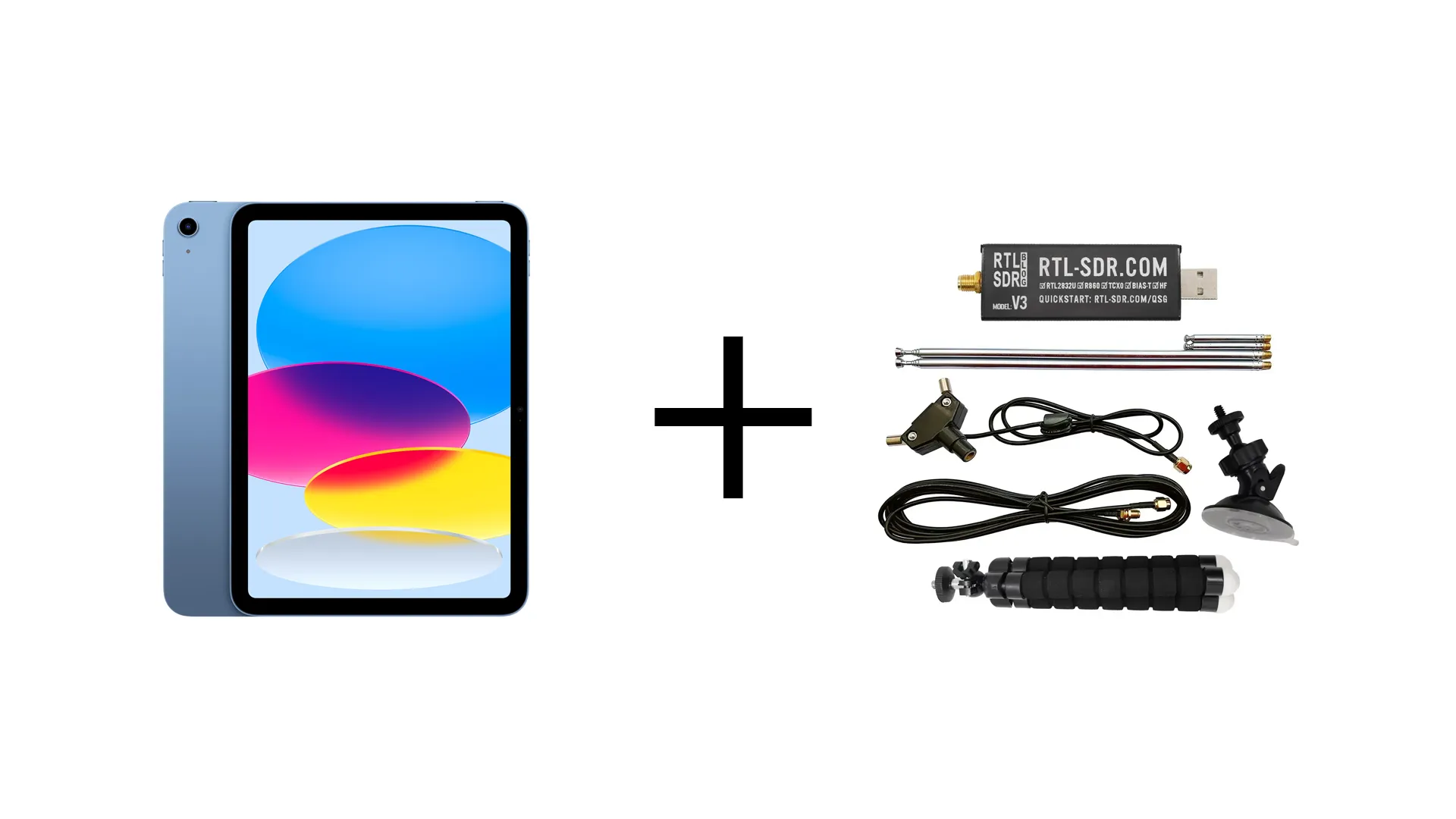
Many iPad users want to plug an RTL-SDR dongle directly into the USB-C port and use the tablet as a portable software-defined radio. The idea makes sense: modern iPads have powerful processors, bright displays, USB-C ports, long battery life, and excellent speakers.
However, RTL-SDR on iPad is not as simple as RTL-SDR on Android, Windows, Linux, or Raspberry Pi. In 2026, the practical iPad workflow is usually network-based, not direct USB. The RTL-SDR receiver normally connects to a Raspberry Pi, Mac, PC, or Linux mini server, then the iPad connects over Wi-Fi using rtl_tcp, OpenWebRX, SDR Receiver, MagicSDR, Echo, or another remote SDR client.
This guide explains the real state of RTL-SDR on iPad: direct USB support, which apps work, which cables are useful, how to build a Raspberry Pi SDR server, and what limitations to expect before buying hardware.
Browse current receivers in the RTL-SDR receivers, kits, antennas, and accessories category. For mobile app recommendations, read Best Android and iOS SDR Apps in 2026.
Quick Answer: Can You Plug RTL-SDR Directly into an iPad?
In normal practical use, no. iPad USB-C supports many accessories, but the current mainstream RTL-SDR iPad apps do not directly control a generic USB RTL-SDR dongle the way Android apps can.
The best iPad setup is:
- Connect the RTL-SDR to a Raspberry Pi, Mac, PC, or Linux mini computer.
- Run rtl_tcp, OpenWebRX, or another SDR server on that computer.
- Connect the iPad over Wi-Fi or Ethernet.
- Use an iPad app such as SDR Receiver, rtl_tcp SDR, MagicSDR, Echo, or Safari with OpenWebRX.
| Goal | Best iPad method | Direct USB? |
|---|---|---|
| Use your own RTL-SDR at home | RTL-SDR on Raspberry Pi plus rtl_tcp or OpenWebRX | No, use network streaming |
| Listen to global SDR receivers | Echo, OpenWebRX, KiwiSDR, WebSDR | No local RTL-SDR required |
| Portable field receiver with direct dongle | Android tablet or small laptop is better | iPad is not the best choice |
| Browser-based SDR on iPad | OpenWebRX in Safari | No, SDR runs on server |
| Raw IQ streaming to iPad app | rtl_tcp server plus SDR Receiver, rtl_tcp SDR, or MagicSDR | No, network client |
Why iPad USB-C Does Not Automatically Mean RTL-SDR Support
USB-C is only the connector. It does not guarantee that every USB device has an iPadOS driver, an approved app interface, or an SDR application that can access the device.
An RTL-SDR dongle is a generic USB radio receiver that normally depends on librtlsdr-compatible software and drivers. On Windows, Linux, macOS, Raspberry Pi, and Android, SDR apps can use the needed driver stack. On iPadOS, App Store apps normally do not have the same low-level generic USB access path for RTL-SDR dongles.
That is why iPad SDR apps usually work in one of three ways:
- They connect to an rtl_tcp server over the network.
- They connect to OpenWebRX, KiwiSDR, WebSDR, or another web receiver.
- They act as polished remote listening clients rather than direct hardware drivers.
Direct USB Support: What Works and What Does Not
| Connection type | Works on iPad? | Practical SDR value |
|---|---|---|
| USB-C storage, camera, display, audio, keyboard, or supported accessory | Yes, depending on the accessory | Not the same as RTL-SDR support |
| RTL-SDR Blog V3 USB-C directly into iPad | Not in normal mainstream SDR apps | Do not buy for direct iPad use only |
| RTL-SDR Blog V3 USB-A through USB-C adapter into iPad | Not in normal mainstream SDR apps | Adapter does not solve the driver/app limitation |
| RTL-SDR connected to Raspberry Pi, then iPad over Wi-Fi | Yes | Best practical setup |
| OpenWebRX in Safari | Yes | Best browser-based iPad option |
| rtl_tcp stream to iPad app | Yes | Best raw-IQ style iPad option |
Best iPad Apps for RTL-SDR Workflows
1. SDR Receiver
SDR Receiver is one of the most practical iPad apps for users who want to listen to their own RTL-SDR over the network. The SDR hardware connects to a host computer, Raspberry Pi, Mac, or PC. That host streams data to the iPad.
Use SDR Receiver when:
- You want a native iPad app for SDR listening.
- Your RTL-SDR is connected to a Raspberry Pi or computer.
- You want networked SDR rather than direct USB.
- You prefer a simpler app-style interface over a browser.
- You are comfortable setting up rtl_tcp or a compatible server.
2. rtl_tcp SDR
rtl_tcp SDR is another iOS and iPadOS app built around the rtl_tcp workflow. The app connects over the network to an RTL-SDR dongle attached to another device.
Use rtl_tcp SDR when:
- You specifically want the rtl_tcp protocol.
- You already run a Raspberry Pi or PC SDR server.
- You want AM, FM, SSB, and CW listening from the iPad.
- You want a waterfall and spectrum display on iPad.
This is not direct USB. The RTL-SDR still runs on a host computer or Raspberry Pi.
3. MagicSDR
MagicSDR is a cross-platform SDR application that can be used as a network client. It is useful when you want panadapter and waterfall visualization with AM, SSB, CW, narrowband FM, and wideband FM demodulation.
Use MagicSDR when:
- You want a cross-platform SDR app.
- You already run an rtl_tcp or compatible network SDR server.
- You want a clean waterfall and tuning interface.
- You also use Android or desktop platforms and prefer a familiar app family.
4. Echo: Global SDR Receiver
Echo is one of the best iPad choices if you want remote SDR listening without setting up your own RTL-SDR. It connects to online SDR ecosystems such as KiwiSDR, OpenWebRX, WebSDR, FM-DX, and OpenMHz-style sources.
Use Echo when:
- You want global remote listening from iPad.
- You do not need to use your own RTL-SDR hardware.
- You want shortwave, amateur radio, aviation, FM DX, or public receiver access.
- You want a polished iOS-native experience.
Echo is excellent for listening, but it is not a local USB RTL-SDR driver.
5. OpenWebRX in Safari
OpenWebRX is often the easiest iPad solution. The SDR runs on a server, and the iPad uses Safari as the client. No App Store SDR app is required.
Use OpenWebRX when:
- You want an easy browser interface.
- You want the SDR processing to happen on the server.
- You want to use the iPad, iPhone, desktop, and other devices from the same receiver.
- You want to share receiver access with multiple users.
- You do not need raw IQ data on the iPad.
OpenWebRX is usually the best route for beginners who want RTL-SDR on iPad without fighting direct USB limitations.
Best Hardware Setup for RTL-SDR on iPad
Recommended setup: RTL-SDR plus Raspberry Pi plus iPad
The best practical iPad RTL-SDR setup uses a Raspberry Pi or mini computer as the SDR host.
| Part | Recommended choice | Purpose |
|---|---|---|
| Receiver | RTL-SDR Blog V3 USB-C or RTL-SDR Blog V3 Kit | Receives the radio signal |
| Server | Raspberry Pi 4, Raspberry Pi 5, mini PC, Mac, or Linux computer | Runs rtl_tcp, OpenWebRX, or SDR server software |
| Client | iPad | Displays waterfall, audio, and controls |
| Network | Wi-Fi or Ethernet | Connects the iPad to the SDR server |
| Antenna | Matched to the band you want to receive | More important than the app in many cases |
Best RTL-SDR choice
The RTL-SDR Blog V3 USB-C is a good current dongle choice because it has a modern USB-C interface, 1PPM TCXO, SMA connector, aluminum case, software-activated bias tee, and broad support on Windows, Linux, Raspberry Pi, and Android.
The RTL-SDR Blog V3 Kit is better for beginners who also need a starter antenna set.
Which Cables and Adapters Do You Need?
If using Raspberry Pi or mini PC
- USB-C or USB-A cable/adapter depending on the SDR and host computer
- Ethernet cable for a stable server connection where possible
- Power supply for Raspberry Pi or mini PC
- SMA antenna cable or extension cable if the antenna is not directly attached
- Optional powered USB hub if the host struggles to power the SDR
If using iPad as the client
- No SDR USB cable is required between RTL-SDR and iPad.
- Use Wi-Fi for normal listening.
- Use a USB-C Ethernet adapter for the iPad if you want a more stable network.
- Use a USB-C hub with power delivery if the iPad needs charging while connected to Ethernet or accessories.
If trying direct USB anyway
A USB-C cable or USB-C to USB-A adapter may physically connect the dongle to the iPad, but it does not solve the missing app/driver workflow. Do not buy cables expecting direct RTL-SDR operation unless a specific iPad app clearly states that it supports your exact dongle directly.
Setup Method 1: iPad with OpenWebRX
This is the easiest and cleanest iPad workflow for most users.
Hardware
- RTL-SDR Blog V3 USB-C or RTL-SDR Blog V3 Kit
- Raspberry Pi 4, Raspberry Pi 5, mini PC, Mac, or Linux computer
- Antenna matched to your target band
- Local network access
- iPad with Safari
Basic workflow
- Connect the RTL-SDR to the Raspberry Pi or computer.
- Install OpenWebRX on the server.
- Create receiver profiles for your target bands.
- Connect the server to your local network.
- Open Safari on the iPad.
- Enter the OpenWebRX server address.
- Tune and listen from the browser.
Why OpenWebRX is best for iPad beginners
- No direct USB driver needed on iPad.
- Works from Safari.
- Processing happens on the server.
- Can support multiple users.
- Works across iPad, iPhone, laptop, and desktop browsers.
Setup Method 2: iPad with rtl_tcp
rtl_tcp is useful when you want the iPad app to receive raw IQ data from a networked RTL-SDR server. It gives more client-side control than OpenWebRX but can use more network bandwidth and may be less beginner-friendly.
Install rtl-sdr tools on Raspberry Pi or Linux
sudo apt update
sudo apt install rtl-sdr
rtl_test
If rtl_test finds the dongle, the receiver is visible to the host.
Start rtl_tcp on the server
rtl_tcp -a 0.0.0.0 -p 1234This starts a server that listens on port 1234. Connect to it from an iPad app such as SDR Receiver, rtl_tcp SDR, or MagicSDR using the server’s local IP address.
Network warning
rtl_tcp streams raw IQ data, which can use significant bandwidth. Start with modest sample rates, use a stable local network, and avoid exposing rtl_tcp directly to the public internet.
Setup Method 3: iPad with Echo or Public SDR Receivers
If your goal is listening rather than using your own RTL-SDR, Echo is the easiest iPad experience. It connects to remote receivers around the world.
This is ideal for:
- Shortwave listening
- Amateur radio monitoring
- FM DX exploration
- Aviation listening through remote receivers
- Trying SDR before buying hardware
The limitation is simple: you are listening through someone else’s receiver. You cannot improve the antenna, change the physical location, or receive signals near your home unless a nearby public receiver exists.
Can You Use RTL-SDR Blog V3 USB-C Directly on iPad?
The RTL-SDR Blog V3 USB-C is a good modern dongle, but USB-C alone does not make it a direct iPad SDR receiver. It is best used with iPad through a networked host such as Raspberry Pi, Mac, PC, or Linux.
| Device | Direct RTL-SDR support | Recommended workflow |
|---|---|---|
| Windows laptop | Yes, with drivers and SDR software | SDR++, SDR#, HDSDR, SatDump, dump1090, AIS-catcher |
| Linux desktop | Yes | GNU Radio, GQRX, rtl_tcp, OpenWebRX, command-line decoders |
| Raspberry Pi | Yes | OpenWebRX, rtl_tcp, ADS-B, AIS, ACARS, satellite servers |
| Android phone or tablet | Often yes, with USB OTG and compatible app | SDR Touch, RF Analyzer, SDR++, SDRangel, SatDump |
| iPad | Not in normal current RTL-SDR workflows | Use rtl_tcp, OpenWebRX, MagicSDR, SDR Receiver, or Echo |
Best Projects for RTL-SDR on iPad
1. General VHF and UHF listening
Use OpenWebRX or rtl_tcp with an RTL-SDR server. This works well for local FM broadcast, airband, amateur radio, PMR/FRS-style bands where legal, and utility monitoring.
2. Shortwave listening
RTL-SDR Blog V3 supports HF reception through direct sampling mode, but for serious HF listening a better HF antenna or a more specialized HF receiver may be needed. For casual iPad shortwave, Echo and public KiwiSDR/OpenWebRX receivers are often easier.
3. ADS-B aircraft tracking
Run ADS-B software such as readsb, dump1090, or PiAware on a Raspberry Pi, then view the map from the iPad browser. This is usually better than trying to process ADS-B directly on the iPad.
Read: Best SDR for ADS-B: RTL-SDR Kits, Antennas, Filters, and LNAs Compared
4. AIS ship tracking
Run AIS-catcher or rtl_ais on a Raspberry Pi with the RTL-SDR and view the output through a web interface, OpenCPN-compatible workflow, or local dashboard.
Read: AIS Ship Tracking with RTL-SDR: Antenna, Software, and Setup Guide
5. ACARS and VDL2 monitoring
Run acarsdec or dumpvdl2 on a Raspberry Pi or computer and view logs or dashboards from the iPad. This is more reliable than trying to decode directly on iPad.
Read: ACARS with RTL-SDR: Decode Aircraft Messages Beyond ADS-B
6. Weather satellites
For live satellite decoding, Android or desktop is usually easier than iPad. For iPad, the better workflow is to run SatDump or satellite tools on a computer and view results separately.
Read: SatDump V2 with RTL-SDR: Complete Beginner Setup Guide
OpenWebRX vs rtl_tcp for iPad
| Feature | OpenWebRX | rtl_tcp |
|---|---|---|
| iPad interface | Safari browser | iPad SDR app |
| Where demodulation happens | Mostly server side | Mostly client app side |
| Beginner friendliness | Better | More technical |
| Network bandwidth | Usually easier to manage | Can be high because raw IQ is streamed |
| Multiple users | Designed for multi-user access | Usually simpler single-client workflow |
| Best use | Browser listening, shared receiver, easy remote access | App-based tuning with raw SDR stream |
For most iPad users, start with OpenWebRX. Try rtl_tcp later if you specifically want an SDR app that tunes a raw networked receiver.
Common RTL-SDR on iPad Mistakes
Buying only a USB-C RTL-SDR and expecting direct iPad support
The connector fits, but the software path is the problem. Plan for a Raspberry Pi, Mac, PC, or Linux server.
Buying only a cable or adapter
A USB-C hub, USB-C to USB-A adapter, or Apple cable does not create an RTL-SDR driver for iPadOS.
Using rtl_tcp over weak Wi-Fi
Raw IQ streaming can be heavy. If the waterfall freezes or audio stutters, use lower sample rates, move closer to the router, or use Ethernet for the server.
Exposing rtl_tcp directly to the internet
Do not expose raw SDR servers directly without proper network security. Use VPN, local network access, firewall rules, or a secured OpenWebRX setup.
Using the wrong antenna
The best iPad app cannot fix a wrong antenna. Use a VHF airband antenna for aircraft, a 1090 MHz antenna for ADS-B, a VHF marine antenna for AIS, and a suitable HF antenna for shortwave.
Troubleshooting RTL-SDR on iPad Workflows
| Problem | Likely cause | Fix |
|---|---|---|
| iPad app cannot find RTL-SDR | The dongle is not connected to a server, or the app expects rtl_tcp | Run rtl_tcp or OpenWebRX on Raspberry Pi, Mac, PC, or Linux first. |
| App cannot connect to server | Wrong IP address, port, firewall, or server not running | Test from another device on the same network and confirm the port. |
| OpenWebRX does not load in Safari | Server address, network, firewall, or service issue | Check OpenWebRX locally on the server and confirm the iPad is on the same network. |
| Audio stutters or waterfall freezes | Weak Wi-Fi, high bandwidth, or overloaded server | Reduce sample rate, use Ethernet for the server, or move closer to the router. |
| No signals are visible | Antenna, gain, frequency, or server configuration issue | Test the RTL-SDR on the server directly before blaming the iPad app. |
| Too much noise everywhere | Receiver overload or wrong gain | Reduce gain, remove unnecessary LNA, add filters, or move the antenna. |
Recommended SDRstore.eu Buying Advice
| Buyer type | Recommended setup | Reason |
|---|---|---|
| iPad-only beginner | Echo or public OpenWebRX/KiwiSDR receivers first | Lets you try SDR listening before buying hardware. |
| iPad user who wants local RTL-SDR | RTL-SDR Blog V3 USB-C plus Raspberry Pi and OpenWebRX | Best practical local iPad workflow. |
| iPad user who wants app-based tuning | RTL-SDR server plus SDR Receiver, rtl_tcp SDR, or MagicSDR | Networked raw-IQ control from iPad. |
| Portable direct USB user | Android tablet plus RTL-SDR Blog V3 USB-C | Android is better for direct USB SDR apps. |
| Permanent home monitoring | Raspberry Pi 4/5 plus RTL-SDR Blog V3 USB-C plus OpenWebRX | Stable always-on receiver with iPad browser access. |
Legal and Privacy Notes
SDR laws vary by country. Before receiving, decoding, logging, forwarding, or publishing radio traffic, check your local rules.
- Use RTL-SDR receive-only hardware for beginner listening.
- Do not transmit unless you are licensed or legally authorized.
- Do not publish private or sensitive decoded content.
- Do not use hobby SDR data for safety-of-life navigation, aviation, or maritime decisions.
- Secure OpenWebRX, rtl_tcp, and other SDR services before remote access.
Related SDRstore.eu Guides
- Best Android and iOS SDR Apps in 2026
- Best SDR for Raspberry Pi: RTL-SDR, ADS-B, AIS, Satellites, and Remote Monitoring
- RTL-SDR Setup Guide for Windows: SDR#, SDR++, Zadig, Drivers, and First Signal
- RTL-SDR Blog V3 Kit Review: Is It Still Worth Buying in 2026?
- RTL-SDR V3 vs V4 vs V4 Lite: Which Budget SDR Should You Buy?
- Best SDR for ADS-B: RTL-SDR Kits, Antennas, Filters, and LNAs Compared
- AIS Ship Tracking with RTL-SDR: Antenna, Software, and Setup Guide
- ACARS with RTL-SDR: Decode Aircraft Messages Beyond ADS-B
Official Resources
- Apple Support: Charge and connect with the USB-C port on your iPad
- Apple Support: Allow USB and other accessories to connect to iPhone or iPad
- Apple Developer: Bring your driver to iPad with DriverKit
- rtl_tcp SDR on the App Store
- SDR Receiver on the App Store
- MagicSDR on the App Store
- Echo: Global SDR Receiver on the App Store
- OpenWebRX official website
- rtl_tcp manual page
- RTL-SDR Blog quick-start guide
Final Recommendation
Do not buy an RTL-SDR for iPad expecting direct USB plug-and-play. The best current iPad workflow is to run the RTL-SDR on a Raspberry Pi, Mac, PC, or Linux computer and use the iPad as a network client.
Choose OpenWebRX if you want the easiest browser-based iPad experience. Choose SDR Receiver, rtl_tcp SDR, or MagicSDR if you want an iPad app connected to an rtl_tcp-style server. Choose Echo if you want global remote SDR listening without running your own hardware.
For hardware, the RTL-SDR Blog V3 USB-C is a good current receiver for Raspberry Pi, desktop, laptop, and Android workflows. For iPad, pair it with a small server instead of relying on direct USB control.
FAQ
Can I plug RTL-SDR directly into an iPad?
In normal current SDR workflows, no. iPad USB-C can connect many accessories, but mainstream RTL-SDR iPad apps use networked SDR servers rather than direct USB control of a generic RTL-SDR dongle.
Does RTL-SDR Blog V3 USB-C work directly on iPad?
Do not assume direct iPad support. The RTL-SDR Blog V3 USB-C is excellent for Windows, Linux, Raspberry Pi, and Android workflows, but iPad use normally requires a networked server such as rtl_tcp or OpenWebRX.
What is the best way to use RTL-SDR on iPad?
The best method is to connect the RTL-SDR to a Raspberry Pi or computer, run OpenWebRX or rtl_tcp, and connect from the iPad over Wi-Fi or Ethernet.
What is the best iPad app for my own RTL-SDR?
SDR Receiver, rtl_tcp SDR, and MagicSDR are practical options when your RTL-SDR is connected to a networked rtl_tcp-style server. OpenWebRX in Safari is often the easiest beginner option.
What is the best iPad SDR app without local hardware?
Echo is one of the best iPad apps for remote SDR listening because it connects to public receiver ecosystems such as KiwiSDR, OpenWebRX, WebSDR, FM-DX, and OpenMHz-style sources.
Do I need a USB-C cable from RTL-SDR to iPad?
Not for the recommended workflow. Connect the RTL-SDR to a Raspberry Pi, Mac, PC, or Linux server. The iPad connects over Wi-Fi, Ethernet, or a browser-based interface.
Can a USB-C hub make RTL-SDR work directly on iPad?
No. A USB-C hub may provide power, Ethernet, or physical ports, but it does not create an RTL-SDR driver or direct hardware support inside an iPad SDR app.
Is OpenWebRX better than rtl_tcp for iPad?
For most beginners, yes. OpenWebRX works in Safari and performs much of the processing on the server. rtl_tcp is better for users who specifically want raw IQ streaming to a compatible iPad app.
Can I use Raspberry Pi as an RTL-SDR server for iPad?
Yes. Raspberry Pi is one of the best ways to use RTL-SDR with iPad. Connect the dongle to the Pi, run OpenWebRX or rtl_tcp, then connect from the iPad over the local network.
Should I buy Android instead for direct mobile RTL-SDR?
If direct USB SDR is the main goal, Android is usually the better mobile platform. Android supports many direct RTL-SDR workflows through apps such as SDR Touch, RF Analyzer, SDR++, SDRangel, and SatDump.
No posts found
Write a review






We support all major card and digital payment options. More local methods are available and shown during checkout.
You enter into a binding sales contract once you have received an 'order confirmation and sales receipt' email from us, in line with our Sales & Delivery conditions. Therefore, sdrstore.eu has the right to cancel your order in the event of technical problems, delivery failure, Fair use policy and other similar situations.






Your payments are protected by advanced encryption and 3-D Secure authentication for safe online shopping.